The Terminal Isn't Scary: A Quick Command Reference
The only 5 terminal commands you need to know
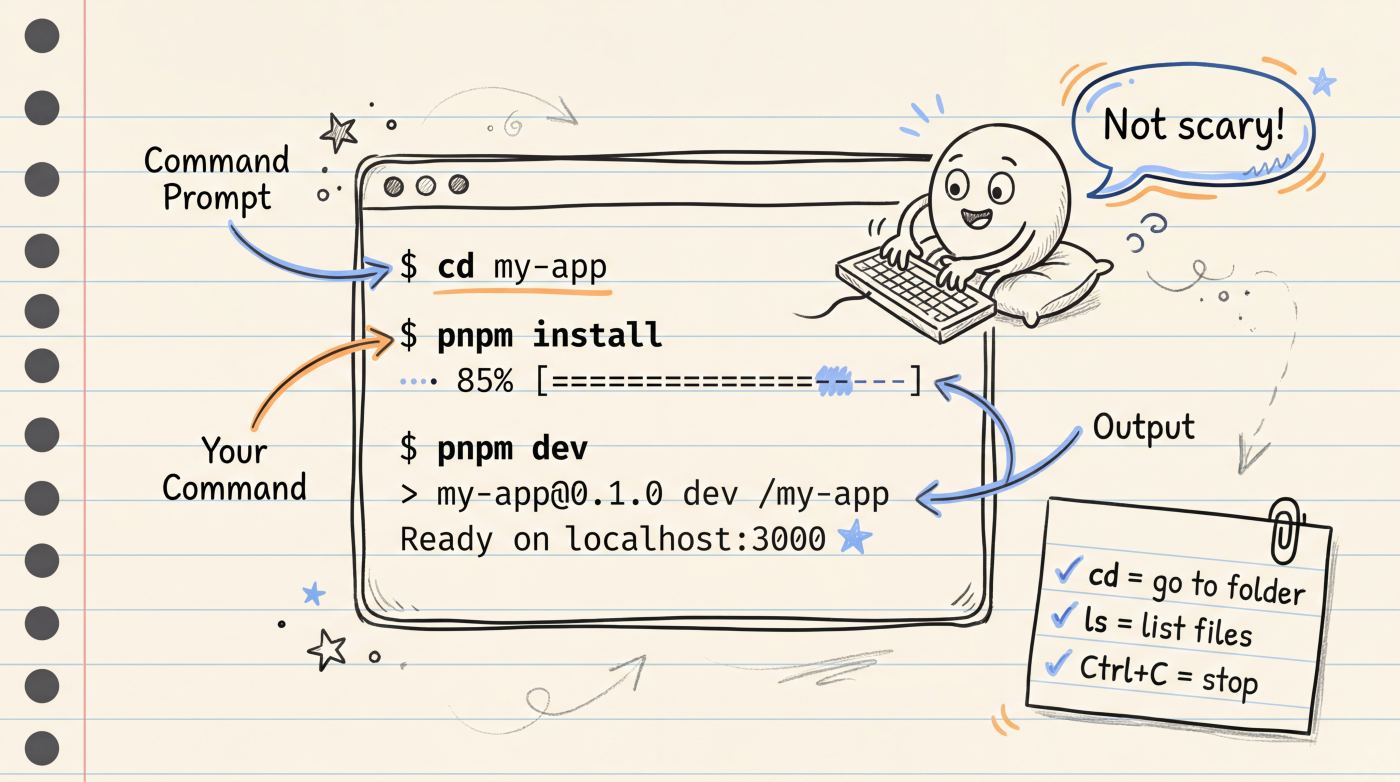
The terminal (Terminal) is that window with white text on a dark background. It might look like something out of a hacker movie the first time you see it, but really it's just another way to talk to your computer -- typing instead of clicking.
In Vibe Coding, you'll use the terminal to start projects, install dependencies, and run builds. The good news: you only need a handful of commands.
Opening the Terminal
- Mac: Press
Cmd + Space, typeTerminal, hit Enter - Windows: Press
Win + R, typecmd, hit Enter (we recommend installingWindows Terminal) - VS Code / Cursor: Press
Ctrl + `to open the built-in terminal
Once it's open, you'll see a blinking cursor waiting for your input.
Navigation: Knowing Where You Are
In the terminal, you're always "standing" inside some folder. It's just like having a file manager open to a specific directory.
# See which directory you're currently in
pwd

# List files and folders in the current directory
ls

# Enter a folder
cd my-app

# Go back up one level
cd ..

# Jump to a specific path
cd ~/projects/my-app
cd is the command you'll use the most -- every time you open the terminal, the first thing you do is cd into your project directory.
Tip: Type the first few letters of a folder name and press
Tabto autocomplete.
Package Managers: Installing and Running
Web projects use package managers to handle dependencies (third-party libraries). The common ones are npm, pnpm, and yarn -- their commands are mostly interchangeable.
| Action | npm | pnpm |
|---|---|---|
| Install all dependencies | npm install | pnpm install |
| Start dev server | npm run dev | pnpm dev |
| Build for production | npm run build | pnpm build |
| Add a new dependency | npm install axios | pnpm add axios |
The most common workflow:
# 1. Navigate to the project directory
cd my-app

# 2. Install dependencies (only needed the first time, or after package.json changes)
pnpm install

# 3. Start the dev server
pnpm dev
After running pnpm dev, the terminal will show a local address (usually http://localhost:3000). Open it in your browser to see your app.
Quick Reference for Common Tasks
| What you want to do | Command |
|---|---|
| See what files are in the project | ls |
| Navigate to the project directory | cd my-app |
| Install dependencies | pnpm install |
| Start the dev server | pnpm dev |
| Stop a running command | Ctrl + C |
| Clear the terminal screen | clear or Cmd + K |
| Create a new folder | mkdir my-folder |
| Delete a file | rm filename.txt |
Ctrl + C is especially important -- when the dev server is running, you need to press Ctrl + C to stop it before you can enter other commands.
When Things Go Wrong
Terminal errors are part of daily life. No need to stress. Here's how to handle the common ones:
command not found -- The command isn't installed. For example, pnpm: command not found means you haven't installed pnpm yet.
EACCES: permission denied -- Insufficient permissions. On Mac/Linux, add sudo before the command (it'll ask for your password).
node_modules acting up -- The universal fix: delete and reinstall.
rm -rf node_modules .next
pnpm install
Can't make sense of the error message? Copy the entire error and paste it to AI, then ask "What does this error mean and how do I fix it?" This is one of the most practical techniques in Vibe Coding.
Next Up
- Version Control -- Use Git to manage code changes and roll back to any previous version