Saving Your Progress with Git
A minimal guide to Git
You asked AI to make a bunch of changes, something broke, and now you want to go back to how things were -- but you can't. Every Vibe Coder has felt that pain.
Git is the tool that solves this. Think of it as a save system in a video game -- save your progress anytime, and load any previous save point whenever you need to.
What Is Git
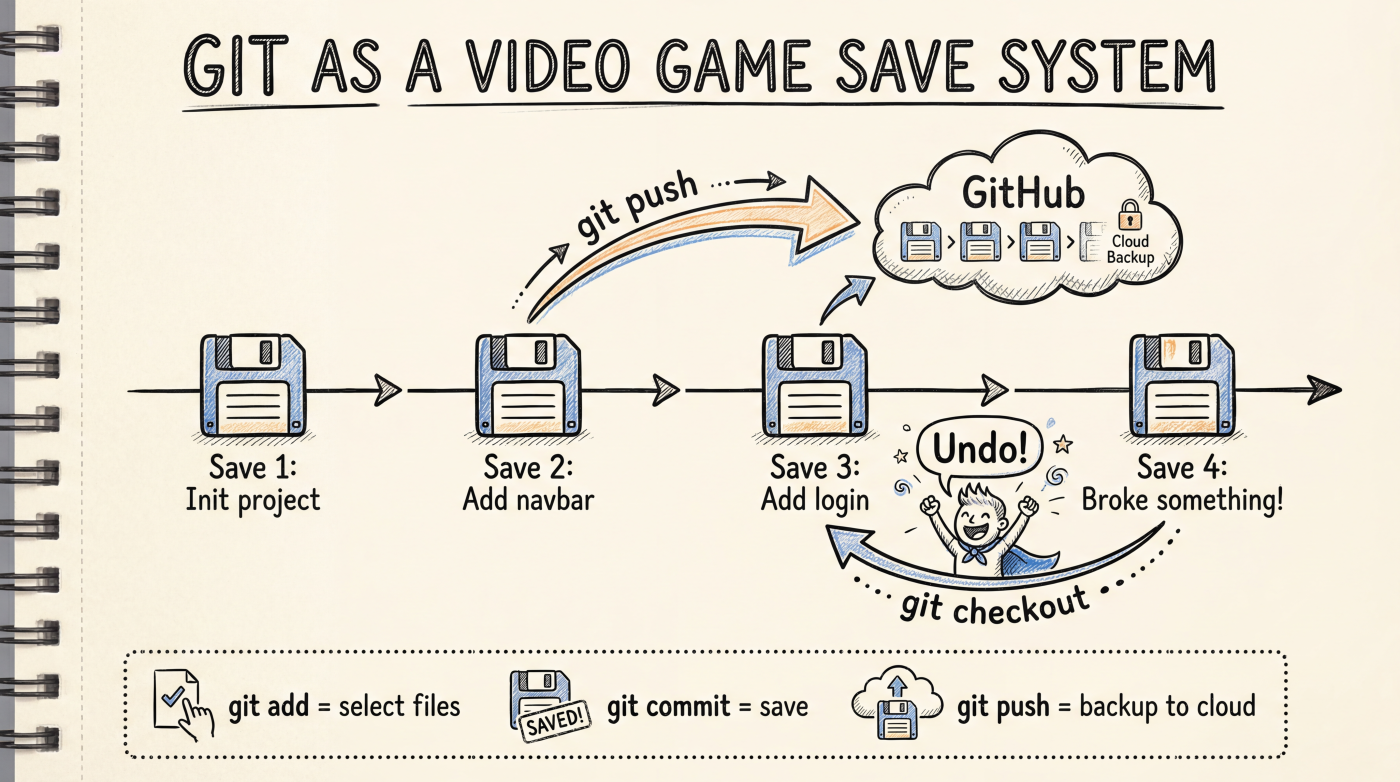
Git is a version control system that records the history of every change in your project.
- Each "save" is called a
commit - Every commit has a timestamp and a description
- You can browse the history and roll back to any commit at any time
GitHub is Git's cloud storage -- sync your local saves to the cloud for backup and for working across different devices.
The Three-Step Save
Git's daily workflow boils down to three commands:
# 1. See which files have been modified
git status

# 2. Stage the modified files
git add .

# 3. Create a save point with a description
git commit -m "Add user login feature"
That's it. git add . marks all changes as "ready to commit," and git commit creates a save point.
The description after
-mmatters -- write clearly what you changed. Future you will be grateful.
Pushing to GitHub
Local commits only exist on your machine. To back them up to the cloud:
git pushOne command, and all your local saves sync to GitHub. If your computer dies or you accidentally delete files, GitHub still has the complete history.
To pull updates from GitHub:
git pullWhen Things Go Wrong
This is where Git is most valuable for Vibe Coders -- the undo button.
| Scenario | Command |
|---|---|
| Undo uncommitted changes to a file | git checkout -- filename |
| View commit history | git log --oneline |
| Go back to a specific commit | git checkout abc1234 |
| Discard all uncommitted changes | git checkout . |
A practical habit: commit after every small feature. That way, even if AI breaks something later, you only need to roll back one small step instead of starting over.
# A good commit rhythm
git commit -m "Complete navbar layout"
# ... AI keeps making changes ...
git commit -m "Add login button"
# ... AI broke something ...
git checkout .  # Back to the last commit
Using Git for the First Time
If your project isn't using Git yet, initializing it takes just a few steps:
# Initialize Git in the project directory
git init

# First commit
git add .
git commit -m "Initialize project"
If you want to connect to GitHub, AI tools (like Cursor or Claude Code) will usually handle it for you. You can also just tell AI: "Help me push this project to GitHub."
Tips for Vibe Coders
- Commit often -- Save after every small feature. Don't wait until you've made a ton of changes.
- Write clear commit messages -- "Fix login bug" is far more useful than "Update code"
- Commit before big changes -- Before letting AI make major modifications, save the current state first
- Don't be afraid -- Git almost never truly loses data. Most operations can be undone.
Next Up
That wraps up the Foundation chapter. You now have a working understanding of app architecture, reading code, file organization, terminal operations, and version control.
- Writing Your First Prompt -- Start learning how to communicate effectively with AI