Project File Structure 101
Common project layouts and what each file does
AI generated a project, you open the folder, and there it is -- dozens of files, a bunch of subdirectories, names that mean nothing to you. Don't panic. There's a pattern to how these files are organized.
Think of it like an office: the reception desk, meeting rooms, file cabinets, and storage each have their own place. Project folders work the same way -- every directory and file has a clear purpose.
What a Typical Project Looks Like
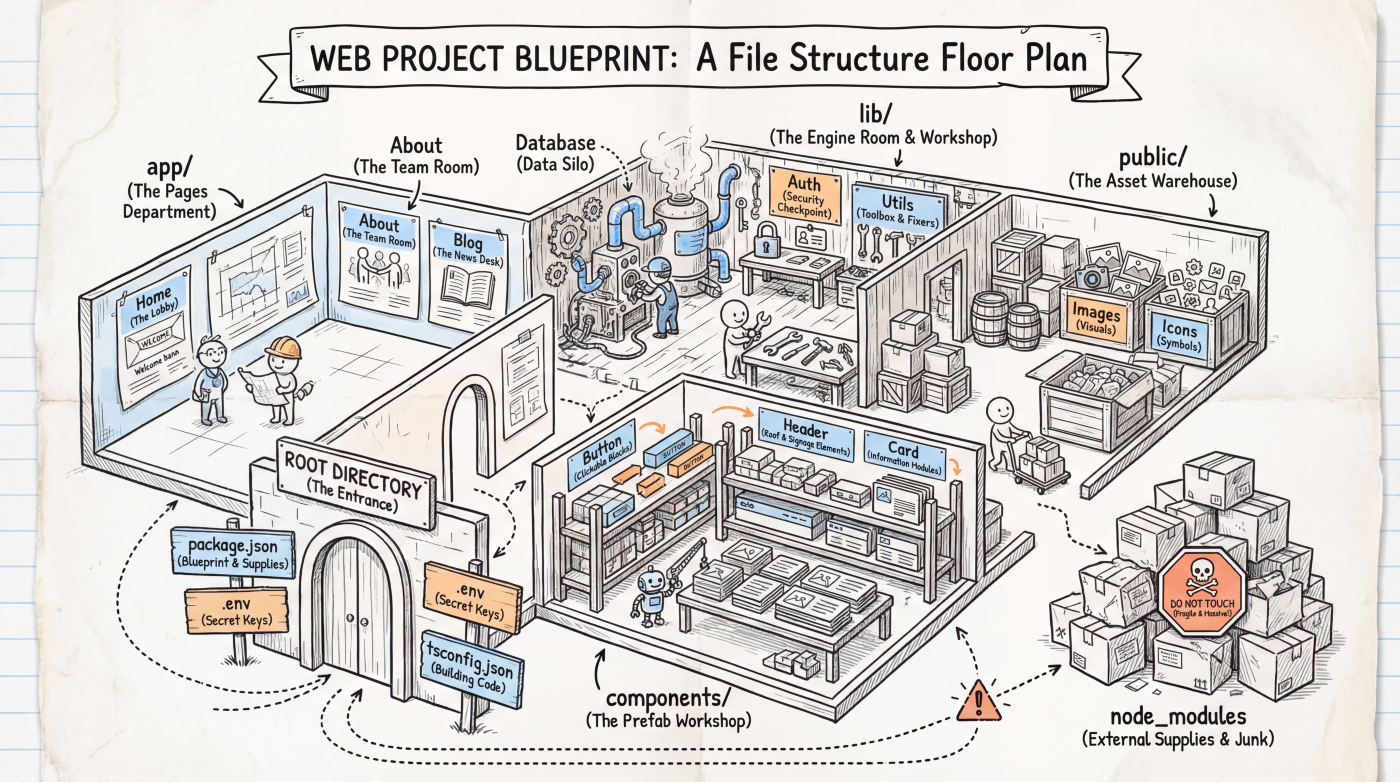
Here's a common web project layout:
my-app/
├── app/                  # Pages and routes
│   ├── layout.tsx        # Global layout (navbar, footer)
│   ├── page.tsx          # Home page
│   └── about/
│       └── page.tsx      # /about page
├── components/           # Reusable UI components
│   ├── Button.tsx
│   └── Header.tsx
├── lib/                  # Utility functions and business logic
├── public/               # Static assets (images, icons)
├── package.json          # Project dependency manifest
├── .env.local            # Environment variables (API keys, etc.)
└── tsconfig.json         # TypeScript configuration
You don't need to memorize every file. Just understanding these broad categories is enough.
Config Files in the Root Directory
Those .json, .config.js, and .env files in the project root are all configuration files -- they tell tools "how to run this project."
| File | Purpose |
|---|---|
package.json | The project's "ID card": name, dependency list, startup commands |
.env.local | Environment variables: API keys, database URLs, and other sensitive info |
tsconfig.json | TypeScript compiler configuration |
next.config.mjs | Next.js framework configuration |
.gitignore | Tells Git which files not to commit (like node_modules) |
package.json is the most important one. Open it and you'll see something like:
{
  "name": "my-app",
  "scripts": {
    "dev": "next dev",
    "build": "next build"
  },
  "dependencies": {
    "next": "16.1.0",
    "react": "19.2.0"
  }
}
scripts defines the commands you can run, and dependencies lists all the third-party libraries the project uses.
Source Code Directories
Source code usually lives in app/, src/, or pages/ (depending on the framework). This is where you and AI will spend most of your time.
app/ -- Pages and Routes
In Next.js, the folder structure maps directly to URL paths:
| File path | URL |
|---|---|
app/page.tsx | / |
app/about/page.tsx | /about |
app/blog/[slug]/page.tsx | /blog/any-article |
components/ -- Reusable Building Blocks
Buttons, navbars, cards -- UI pieces that get reused across multiple pages live in components/. Think of them like LEGO bricks: build once, snap together anywhere.
lib/ -- Utilities and Logic
Database connections, permission checks, helper functions -- the "behind the scenes" work goes in lib/. Some projects call it utils/ or helpers/, same idea.
Directories You Don't Need to Touch
Some directories are auto-generated. Don't modify them manually:
| Directory | What it is |
|---|---|
node_modules/ | Third-party library code, downloaded automatically by npm install |
.next/ | Next.js build output, generated automatically by npm run build |
.git/ | Git version history, managed by Git |
These three directories combined might contain tens of thousands of files, but you can completely ignore them. If the project breaks, deleting node_modules/ and .next/ then reinstalling and rebuilding often fixes things.
Communicating File Structure to AI
Once you understand file structure, you can guide AI much more precisely:
| Not great | Better |
|---|---|
| "Fix the navbar" | "Modify the navbar in components/Header.tsx" |
| "Add a new page" | "Create a page.tsx under app/pricing/" |
| "Database won't connect" | "Check the database connection string in .env.local" |
When you can name specific file paths, AI doesn't have to guess what you're referring to, and its answers get a lot more accurate.
Next Up
- Terminal Basics -- Learn how to run projects and install dependencies from the command line
- Version Control -- Use Git to manage code changes without fear of breaking things